
Majority of all information leaks occur due to pure user mistakes where sensitive information is shared with the wrong recipients. By increasing awareness around information management among our end users, we can protect sensitive corporate information from leakage. Microsoft (Office) 365 apps has come a long way and complemented several of our daily actions with information about the sensitivity level we are handling. AI integration with Microsoft 365 Copilot will revolutionize and enhance our productivity across Microsoft’s various services. Organizations that have already started with information classification and implemented Microsoft Purview Information Protection and Data Loss Prevention have good prerequisites to increase awareness and ensure that sensitive information is handled correctly and isolated to authorized recipients even in a Copilot scenario.
As I mentioned before, the AIP add-in has been disabled in new Office versions (2302/2303) and is now primarily intended for encrypting and consuming non-Office files such as images, text, etc.
Starting from Office 2302, sensitivity is displayed both when saving and sharing information. The default sharing settings in Teams/SharePoint entail several risks that most people are unfortunately unaware of. By default, it is allowed to further share documents, which means that if a sensitive document is shared with an employee, they can share the file with someone else. This can be prevented at the site level, where we can set files to be shared only by site owners, thus blocking this scenario, but it may also limit too much and hinder productivity.
By applying the appropriate protection level through Sensitivity Labels and RMS encryption, we can ensure that only the correct personnel can access information regardless of how it is shared and stored. Examples can be found in HR, Legal, R&D, and other departments where there are often predefined labels for their respective departments and their information. If there is extremely sensitive information that should only be accessed by specific individuals, groups, or organizations, we now also have support for Custom Permissions. The new interface makes it easy to apply the right protection and ensure that unauthorized individuals cannot access the document regardless of where it is stored.
Let me do an example, where we can see how a Confidential document that was previously encrypted within the organization is changed to provide read-only rights to an organization and allows only two users to edit and modify the information. When sharing this document, we ensure that only authorized individuals have access to the information, thereby preventing unauthorized individuals from changing the information or further sharing it.

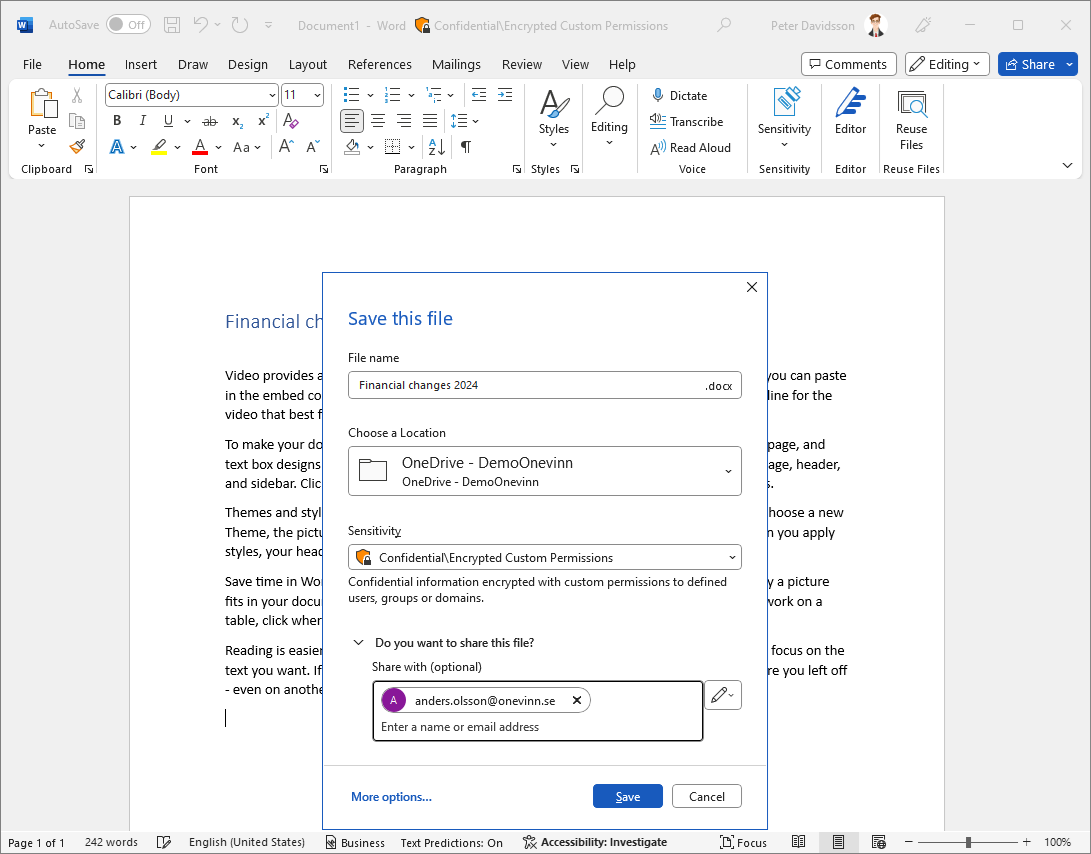
When the user manage the file’s access, it is clearly visible what sensitivity level the file has and who has received shared links: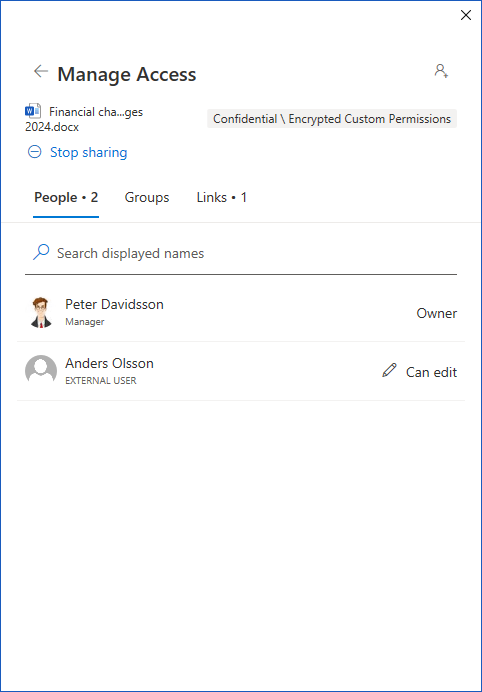
If the external user, who only has read access, attempts to share it, this action is prevented by RMS (in the same way that they are unable to take a screenshot of the file  ).
).
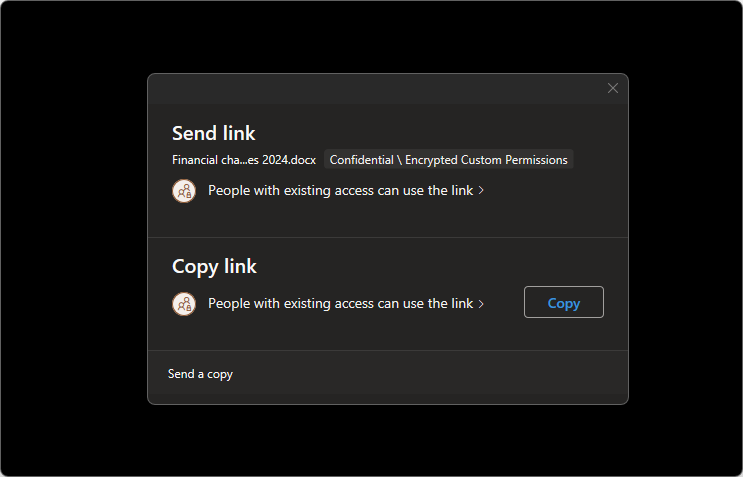
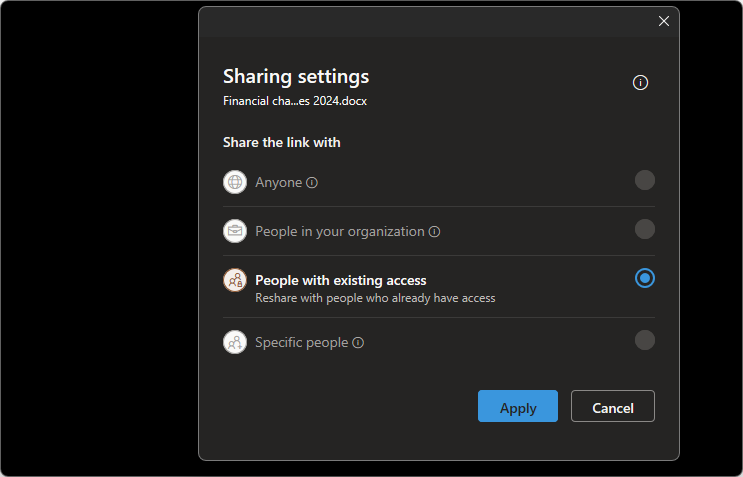
Should someone with authorization still share the file, unauthorized individuals will encounter the following:
This is good example how label protection prevent common user file share mistakes. Currently, only locally installed Microsoft 365 Apps can open files protected with ”custom permissions,” and not cloud services such as Office Online/Teams. However, hopefully, we will soon have support for this as well.
There are several advantages to no longer relying on an AIP add-in in Office (Microsoft 365 Apps). One use case that we recently identified was the risks associated with Microsoft 365 Apps add-ins that can both access and store sensitive corporate data in unauthorized third-party services. The problem with Office add-ins is that they run in the user’s context and consequently possess the same privileges as the user. Add-ins require/utilize macro access (OBJMODEL) in Office files to access data, and historically, with the AIP add-in to Office, we needed to allow macros for RMS-encrypted files to visualize label information. However, with the current built-in sensitivity support in Office, we no longer need macro support. This gives us the opportunity to protect leakage of sensitive data with RMS encryption.
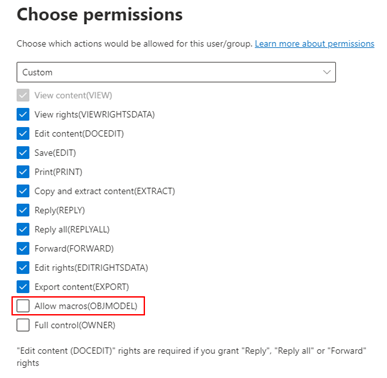 The following RMS permission example would encrypt Office files and emails for designated individuals, groups, and domains, limiting access only to specified individuals and restricting Office add-ins from accessing the content:
We receive new enhancements with information protection with practically every new Microsoft 365 app release. Here are a few more examples.
Microsoft 365 Apps version 2303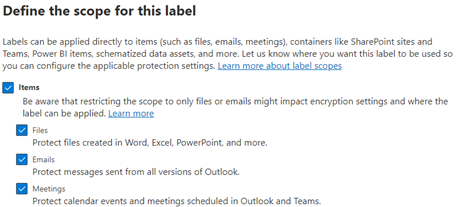 Support was introduced for creating different types of Labels and protection for Files, Emails, and Meetings. This makes it easy to build a user-friendly design with names and descriptions for the rights and restrictions that apply to the used app.
Microsoft 365 Apps version 2306
Expanded support is provided for organizations that have requirements to store data locally in SharePoint OnPrem, where we now have support to apply the correct label and protection for files stored in local SharePoint. Basically, it is supported for users or automated sensitivity labels to classify files saved in local SharePoint, ensuring consistent information protection throughout the organization’s data storage.
I hope this article has provided you with some new ideas. Feel free to comment and/or reach out if you would like me to write about any other scenarios within Purview.

 IT-Säkerhetsguiden